Showing posts with label cara mengaktifkan wifi di komputer. Show all posts

Friday, August 12, 2016

SHARE BY MAKING HOTSPOT WIFI ID OWN LAPTOP

SHARE BY MAKING HOTSPOT WIFI ID OWN LAPTOP

this time I will share how menshare wifi id from our account to another laptop or smartphone. so that the account can be used together. and can be used together berinternetan

The first step of course konekkan with wifi wifi login id and id
then the next is how to enable wifi on the laptop that can be seen in the guide below. way of setting up wifi on the laptop is easy using only one tool that is cmd.exe
how to enable wifi on your computer / laptop is very easy not .... please visit this blog to get the latest info ....

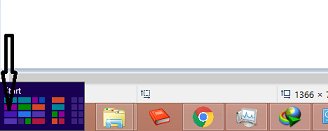
The first step put your cursor in the lower left corner for the window 8 as the picture, if windows 7 type cmd in the search in the start window. right-click cmd.exe select Run as administrator.


The next is a right-click, click the command prompt (Admin)


after it emerged cmd.exe. type "netsh wlan set hostednetwork ssid = namawifimu key = passwordwifimu" without quotes


The next lagkah press enter and wait until there is a notice. The next type "netsh wlan start hostednetwork"


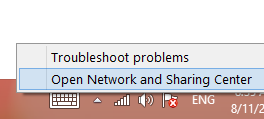
after making hotspot, we will change the settings wifi adapters allow us to be so that other devices can use our connection. I click the right mark wifi as picture


select Open Network and Sharing center


furthermore seen that we created at the bottom and the wifi connection id which will be divided
click on the wifi connection id like image


will appear wifi status, click properties, will appear wifi propertis click the Sharing tab, check the network and allow other select our pitch wifi adapter with wifi connection id as shown below:


finished, now connect your laptop or smartphone to a wifi hotspot that you have created.

The guide is a way of setting up wifi on my laptop how to make laptop into a hotspot
how to enable wifi on the laptop.

Thursday, August 11, 2016

BERBAGI WIFI ID DENGAN MEMBUAT HOTSPOT SENDIRI DENGAN LAPTOP

BERBAGI WIFI ID DENGAN MEMBUAT HOTSPOT SENDIRI DENGAN LAPTOP

kali ini saya akan berbagi caranya menshare wifi id dari akun kita ke laptop atau smartphone lain. sehingga satu akun dapat digunakan bersama-sama. dan dapat digunakan berinternetan bersama

langkah pertama tentu saja konekkan dengan wifi id dan  login wifi id
kemudian selanjutnya adalah cara mengaktifkan wifi di laptop yang dapat dilihat di panduan dibawah ini. cara setting wifi di laptop  sangat mudah hanya menggunakan satu tool yaitu cmd.exe
cara mengaktifkan wifi di komputer /laptop ini sangat mudah bukan.... silahkan kunjungi blog ini untuk mendapatkan info terbaru....

langkah pertama taruh kursor anda di pojok kiri bawah bagi pengguna window 8 seperti gambar, kalo windows 7 ketik cmd di search di start window. klik kanan cmd.exe pilih run as administrator.

selanjutnya adalah klik kanan, klik command promt (Admin)


setelah itu muncul cmd.exe. ketikkan "netsh wlan set hostednetwork  ssid=namawifimu key=passwordwifimu" tanpa tanda petik


lagkah selanjutnya adalah tekan enter dan tunggu hingga ada pemberitahuan. selanjutnya ketik "netsh wlan start hostednetwork"


setelah selesai membuat hotspot, kita akan merubah setting wifi adapter kita agar menjadi allow agar device lain dapat menggunakan koneksi kita. caranya klik tanda kanan wifi seperti gamabar

pilih open network and sharing center


selanjutnya terlihat yang kita buat dibagian bawah dan koneksi wifi id yang akan kita bagi
klik pada koneksi wifi id seperti gambar


akan muncul wifi status, klik propertis, akan muncul wifi propertis klik tab sharing, cek allow other network dan pilih adapter wifi kita yang ter koneksi dengan wifi id seperti pada gambar berikut:


selesai, sekarang tinggal konekkan laptop atau smartphone kamu ke hotspot wifi yang telah kamu buat. 

panduan tersebut adalah cara setting wifi di laptop cara membuat laptop menjadi hotspot 
cara aktifkan wifi di laptop.